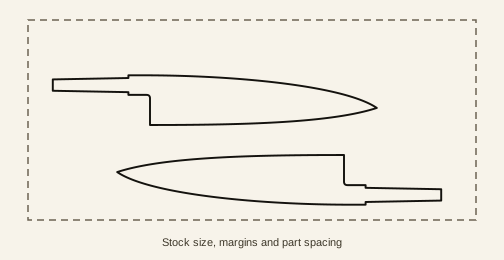
Get the blanks into the layout
Pick a base template, or add one of your saved designs when signed in. Each pick adds another blank, so you can put together a mixed batch or several of the same knife.
The tool keeps a copy of the design as it was when you added it. That means you can keep working on a design without quietly changing a nest you already laid out.
Leave yourself room to cut
Enter the actual bar length, width and thickness, then set the spacing between blanks and the margin around the edges. I would think about the saw or grinder you are going to use while choosing those clearances.
The layout works from the outlines as drawn. It does not add a cutting allowance for you, so leave the space your method needs and have a proper look at the tight spots before committing to the layout.
See what fits and what is left
The blanks run along the bar and can turn end for end to find a better fit. They do not rotate to arbitrary angles. Under the drawing you can see how many fit, how far the batch runs along the bar and what remains in one usable piece.
Yield is useful, but I would look at the leftover shape as well as the percentage. A clean piece at the end may be much more useful for the next knife than a collection of small gaps between these ones. If a blank cannot fit, the tool tells you.
Print or export your layout
Print at 1:1 or export PDF, SVG or DXF when the arrangement looks right. Check the scale and clearances before cutting, just as you would with a single template.
Spacing
Part spacing, edge margin and kerf are different things. Spacing leaves room between drawn blanks; margin keeps them away from the bar boundary. Kerf compensation offsets a machine cutting path where supported. It does not make an awkward hand-cutting route accessible.
| Setting | What it means |
|---|---|
| Part spacing | Clearance between blank outlines. Choose it for the cut and cleanup you need. |
| Edge margin | Clearance from the stock boundary. Allow for rough edges and workholding. |
| Kerf | The cutter’s removed width. Where the export supports compensation, confirm the chosen value and cutting workflow; avoid compensating again in CAM. |
Look at the cutting order, not just the yield
Before exporting, pick a first cut and follow the rest on screen. Will the remaining piece still be clamped safely? Can you turn into the inside corners?
A lower yield that leaves one clean offcut can be more useful than a tightly packed bar with unusable scraps. Save the layout with the material notes and mark each blank when it comes off the stock.
Comments
Questions, corrections and what worked for you. Upvote comments you find useful.
Loading comments…